
The Isle Cheat Setup: Hyper-V, Cloud DMA and the Order That Boots
Every failed install is a firmware or Windows setting. Work the checks in order, then follow the install and launch sequence exactly.
Four things break an install and none of them are the cheat: virtualization off, Hyper-V missing, a security setting switched off, or the launch order backwards.
Fifteen minutes of checks beats an evening of guessing.
Step 1: Windows version
Windows 10 or 11, 64-bit, current build. Cloud DMA provisions a Hyper-V environment and Hyper-V is a proper feature on Pro, Enterprise and Education. On Home it takes more work and the installer notes for your edition matter.
Step 2: Virtualization in firmware
Intel VT-x or AMD-V. Reboot into firmware, find the entry, enable, save, reboot.
Confirm in Task Manager, Performance, CPU. It should read enabled.
Step 3: The four security settings
• HVCI on, under Core Isolation as Memory Integrity
• Core Isolation on
• TPM on and visible to Windows
• Secure Boot on
If Memory Integrity will not stay on, a driver is blocking it. Update or remove the driver rather than leaving it off.
Step 4: Memory
8 GB minimum, 16 GB realistic. Evrima is not heavy, but the virtual environment plus the game on 8 GB is tight. Close the browser.
Step 5: Overlays off
Discord overlay, GeForce overlay, the Steam overlay, any capture hook. Off for the first launch, back one at a time later.
Step 6: Install in order
Cloud DMA first, as administrator. Then the supporting pieces. Then The Isle from Steam.
Cloud DMA is its own purchase and not the whole stack. GREENWARD, Static Server and AWS are separate, all required, and Static Server and AWS are two different products. None are bundled in the Cloud DMA checkout.
Let provisioning finish and activation complete over the service link.
Step 7: Launch order
Reboot cleanly first.
1. Boot, let the machine settle
2. Confirm the Cloud DMA layer is up
3. Launch The Isle from Steam, on the Evrima branch
4. Join a server and spawn
5. Start the loader, wait for the menu
Loader before the game process is the top cause of an empty menu.
Step 8: First run checks
Menu key is INSERT by default, and the menu key and panic key are both rebindable.
If the menu appears, verify:
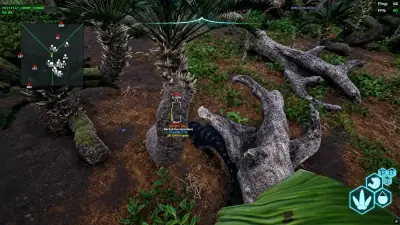
• player ESP on a visible dinosaur
• species and growth labels rendering
• a distance slider accepting a value
• panic key hiding the menu
All four means live. Menu up with nothing drawing is a partial load.
Mistakes worth naming
Launching from the installer. Provisioning needs a clean reboot.
An old loader in the tray. Check before every launch.
Being on the wrong Steam branch. Evrima only, covered in its own article.
Installing with the game open. Close it.
Skipping firmware. Reinstalling does nothing if virtualization is off.
When to stop
If virtualization is on, all four settings pass, overlays are off and the menu will not appear, open a ticket with your Windows build, the four states, the loader version and the installer output.
Setup is a one time cost. Do it once properly and the rest is config.